SCREENSHOTS FOR MAC
Capture. Mark up.
Copy + Close.
Add arrows, notes, and a frame. Copy the finished image
and close the editor in one click.
Free to try. Upgrade to Pro for premium features.
Coming to the Mac App Store · macOS 14+ · Apple Silicon
- 6tools, with keyboard
shortcuts 1–6. - 1click to copy your image
and close the editor. - 0save dialogs before
you paste your image.
PRIVATE ON YOUR MAC
Your screenshots
stay on your Mac.
Snapperon never uploads or sends your screenshots to us. You edit them on your own computer.
No account needed. You choose what to copy, save, or share.
Read the Privacy PolicyCOPY + CLOSE
Copy it, then
get back to work.
Click Copy + Close or press ⌘C. Your finished image is ready to paste, and the editor closes.
No filename. No folder. No export dialog.
- 01
Capture
Choose an area or your whole screen.
- 02
Mark up
Add your markup and framing.
- 03
Copy + Close, then paste
Back to your email, chat, or document.
Paste into any app that accepts images. Prefer another route? Save, Drag, and Share are there when you need them.
01 / ARROWS & TEXT BANNERS
Show what
needs changing.
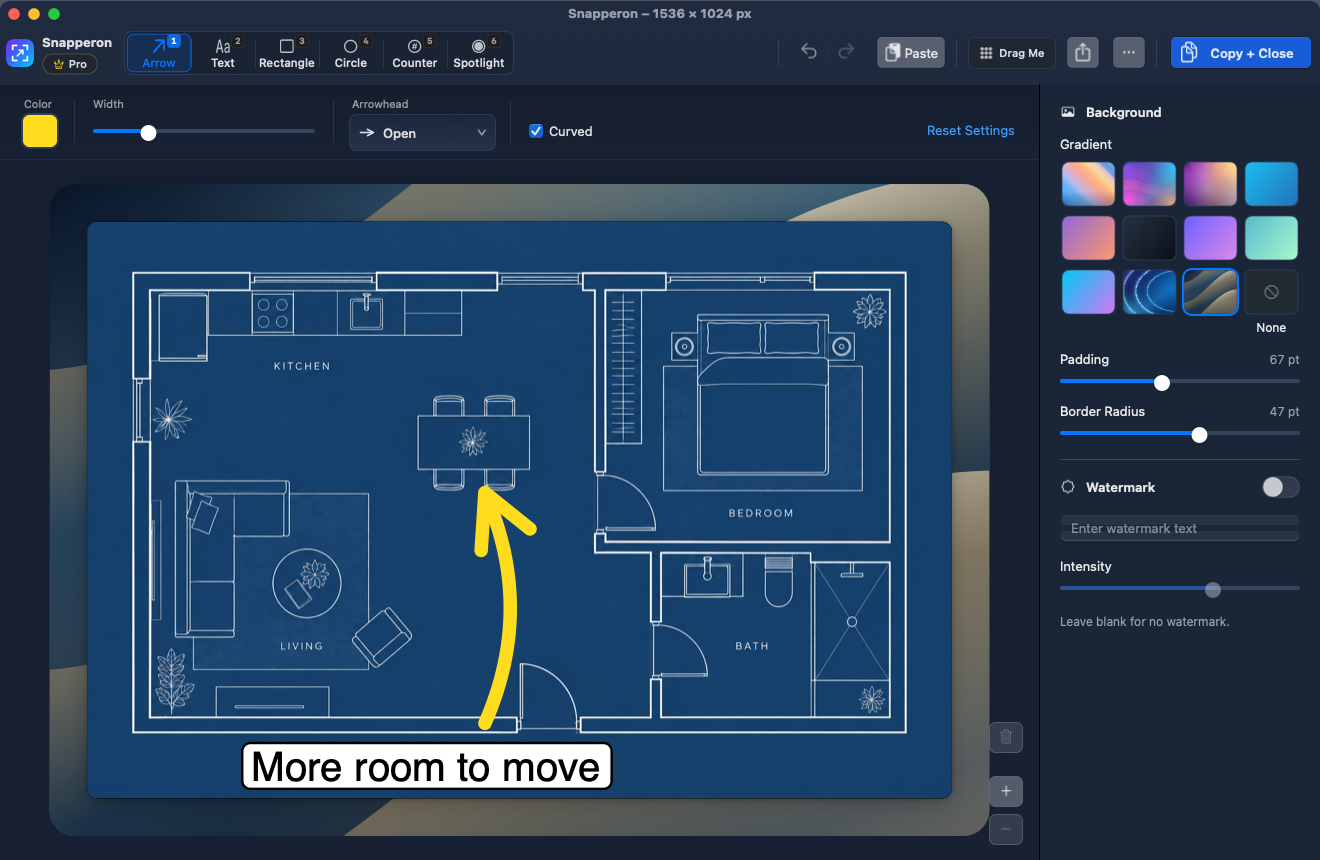
Point out a detail with an arrow. Add a readable text banner, or number a set of steps. Put your feedback directly on the screenshot.
- Arrows, text, rectangles, circles, counters, and Spotlight
- White text banners keep your notes readable over the image
- Number keys 1–6 keep every tool close
- Pro adds curved arrows, custom fonts, colors, and more styling control
All six tools are included in Free.
02 / SPOTLIGHT
Highlight the part
that matters.
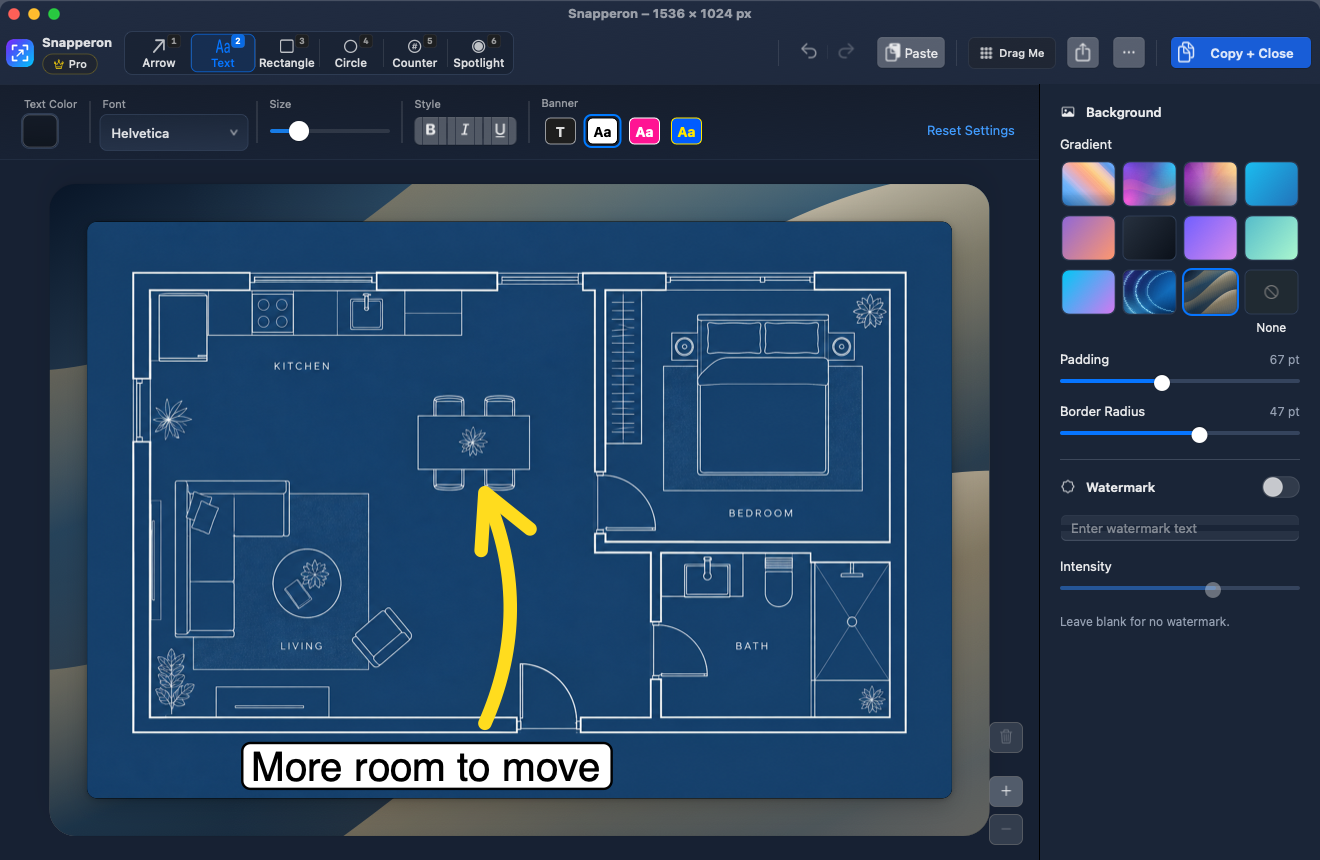
Dim the rest of the screenshot so people can see exactly where to look.
- Adjust the light’s size and intensity
- Keep background dimming on or off
- Yellow in Free. Five more glow colors in Pro.
03 / GRADIENT FRAMES
Add a frame
before you share.
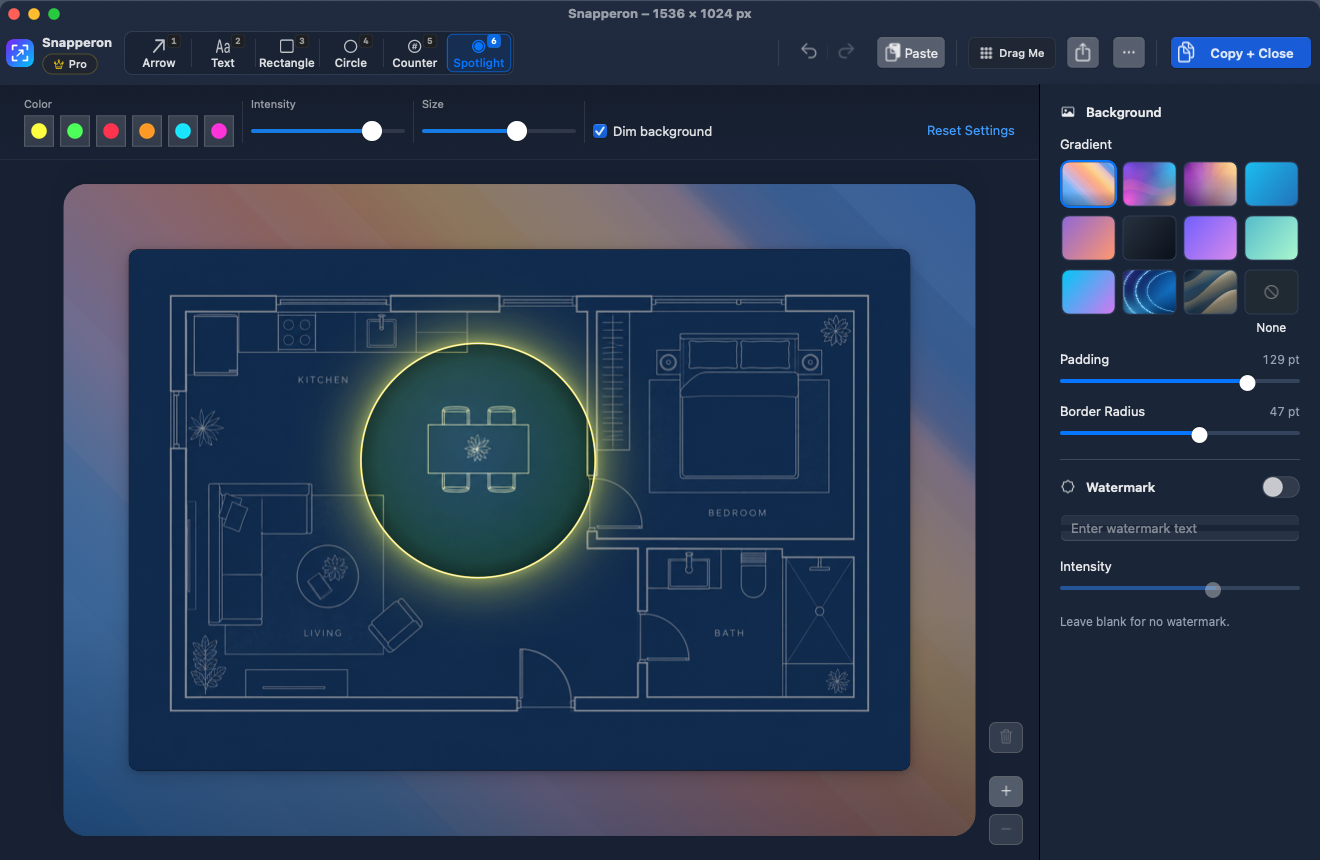
Choose a gradient, adjust the space around your image, and round the corners. Give your screenshot a finished look for a presentation, document, or email.
- Choose from 11 gradients
- Adjust padding and corner radius
- Copy it straight into your next message or document
The framing controls are included in Free.
QUESTIONS & ANSWERS
Before you
get started.
Free and Pro, compatibility, and your screenshots.
Have another question?
Snapperon support
The right fit
Why use Snapperon instead of the built-in Mac screenshot tool?
If you want framing and markup in the same place, Snapperon brings gradient borders, text banners, numbered counters, and Spotlight into one editor. Copy + Close makes the result ready to paste and closes the editor. Pro adds options including curved arrows and custom styling.
Which Macs can run it?
Snapperon is built for Apple Silicon Macs running macOS 14 Sonoma or later. It will be available through the Mac App Store; the listing is not live yet.
Can I paste into my usual apps?
Yes, wherever pasted images are supported. Copy + Close puts the image on your clipboard, ready for your chat, email, or document. You can also save an image, use Drag Me, or open your Mac’s Share menu.
Free and Pro
What can I do with Free?
Use all six tools, text banners, the 11 gradients, padding and corner-radius controls, yellow Spotlight, and copy to clipboard. Free includes 10 successful captures per local day, from 9 am to midnight. Finished images include a tiled Snapperon watermark, styling options are limited, and the editor uses a light appearance.
When would I want Pro?
Choose Pro when you want to share without the Snapperon watermark, use custom watermark text, capture without time or daily limits, or tailor the look of your markup. Pro also adds curved arrows, five extra Spotlight colors, and Light, Dark, or Follow System appearance.
Your images
Do I need an account or upload my screenshots?
No account is needed. You capture and edit on your Mac. Snapperon never uploads or sends your screenshots to us. You choose which images to copy, save, or share.
Does copying leave a file behind?
Copying puts the finished image on your Mac’s clipboard without a save dialog. Dragging and sharing may create temporary image files. Your Mac may sync clipboard contents according to your settings, and other apps may keep their own copies. See the Privacy Policy for the details.

SCREENSHOTS FOR MAC
Make your next
screenshot clearer.
Free to try. Upgrade to Pro when you want more control.
See the editorComing to the Mac App Store · macOS 14+ · Apple Silicon